How to Type the Trademark Symbol on Mac

The trademark symbol on Mac is usually typed with Option + 2 on an ABC or U.S.-style input source. Copy ™ here when a different layout or app captures that shortcut.

Mac shortcut

Option + 2 → ™

Place the cursor in a text field, hold Option, press 2, then release both keys. The copied result is editable Unicode U+2122 text.

Copied to clipboard!

Choose the fastest route

Trademark Symbol on Mac: Quick Answer

Use the method that matches your keyboard layout and the app in front of you. Each option inserts the same editable ™ character.

Copy ™ in one click

Copy → Command + V

The fastest way to get the trademark symbol on Mac is to select the large ™ button above, move to the destination, and press Command + V. This works in browser forms, remote sessions, design tools, and documents.

The button copies U+2122 rather than an image, so the mark stays editable and searchable.
Use Option + 2

⌥ + 2 → ™

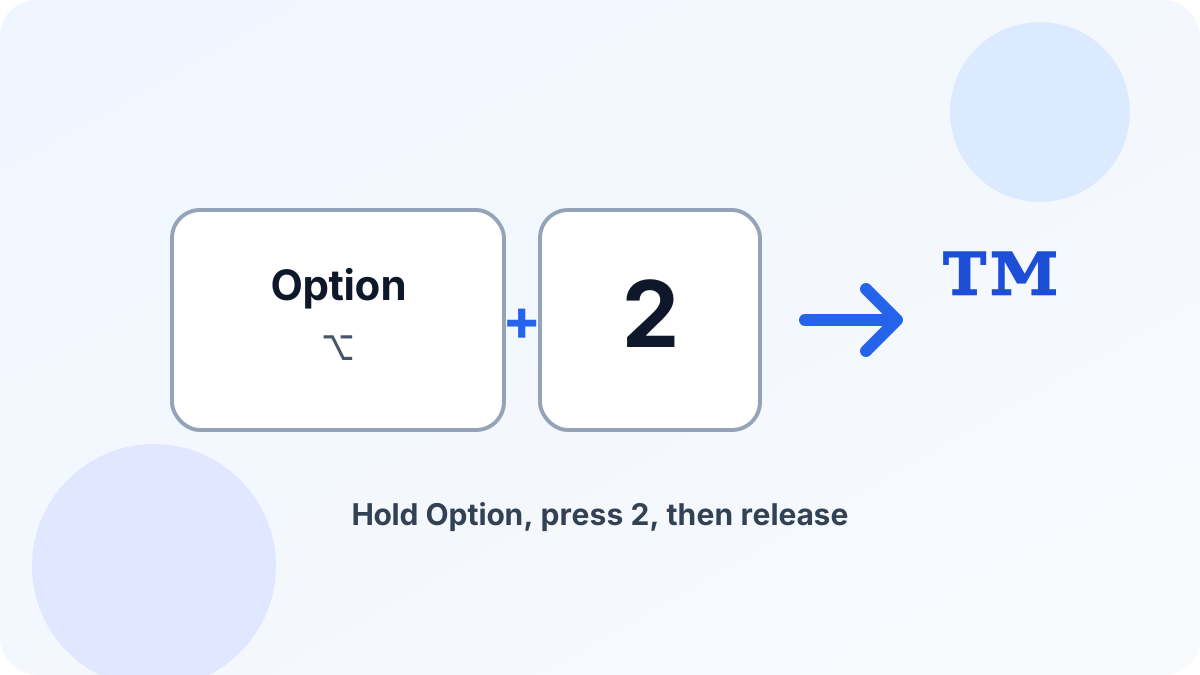
For the trademark symbol on Mac with an ABC or U.S.-style input source, click at the insertion point, hold Option, press 2, and release. This is usually the shortest native method.

If the result is € or another character, your active input source uses a different mapping.

Open Character Viewer

Fn/Globe + E

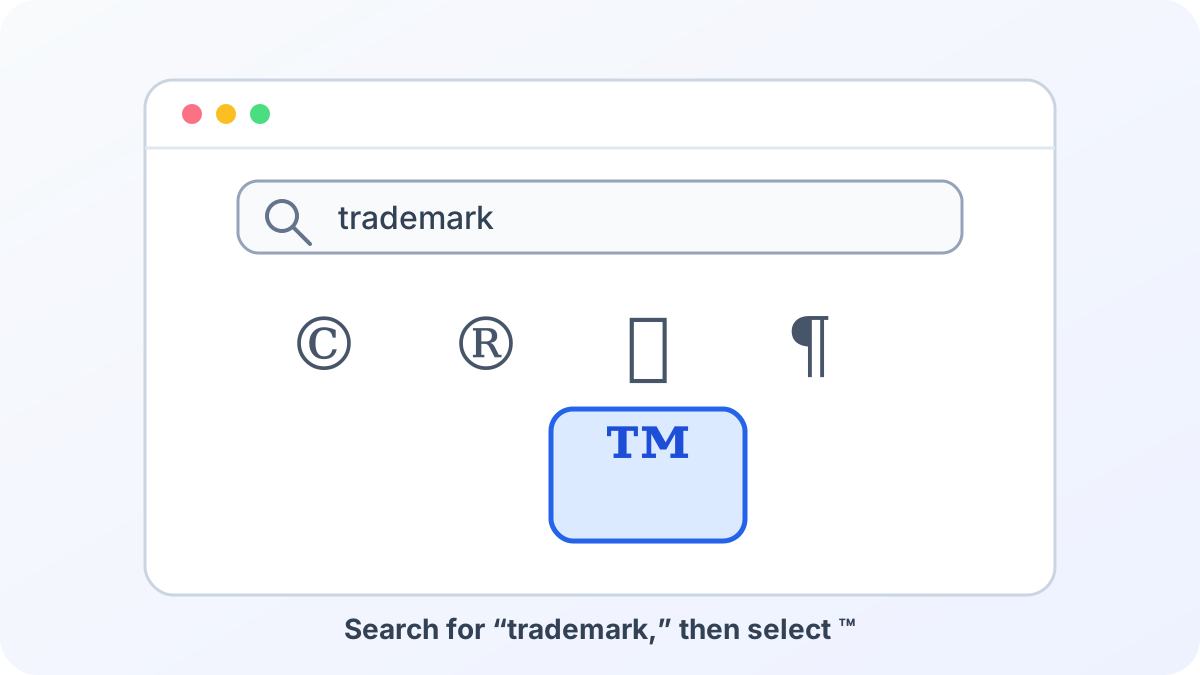
Choose Edit → Emoji & Symbols, or press Fn/Globe + E on current macOS versions. Search for trademark, then select ™. The viewer is the safest built-in fallback when layouts differ.

You can also add the character to Favorites for quicker reuse.

Check Keyboard Viewer

Input menu → Keyboard Viewer

Open the Input menu and choose Show Keyboard Viewer. Hold Option to display the extra characters assigned to your current layout before you change any settings.

If the Input menu is hidden, enable it from Keyboard settings under Text Input.

Step-by-step workflow

How to Type the Trademark Symbol on Mac

This workflow keeps the trademark symbol on Mac predictable whether you use a built-in keyboard, an external keyboard, or an app that reserves Option shortcuts.

Option + 2 shortcut for the trademark symbol on a Mac keyboard
On an ABC or U.S.-style layout, hold Option and press 2. This original diagram shows the complete key sequence.
Trademark symbol selected in a simplified macOS Character Viewer illustration
When the shortcut differs, open Character Viewer, search for “trademark,” and select ™. The interface shown is an original explanatory illustration.
  1. Place the cursor. Click exactly where ™ should appear in a document, message, form, slide, or design text layer.
  2. Try Option + 2. Hold Option before pressing 2. Release both keys and confirm that the result is ™ rather than a currency sign or another symbol.
  3. Use a built-in fallback. If the shortcut is different, open Character Viewer with Edit → Emoji & Symbols or Fn/Globe + E, search for trademark, and insert the result.
  4. Verify the character. Select and copy the result into a plain-text app if needed. A correct mark remains text and corresponds to Unicode U+2122.

Apple's current documentation confirms that Character Viewer inserts symbols and that Keyboard Viewer reveals characters assigned to modifier keys. See the official Character Viewer guide and Keyboard Viewer guide.

Application notes

Use ™ in Word, Google Docs, Pages, and Mail

When you use the trademark symbol on Mac, the character remains ordinary text. The main difference between apps is where they place their symbol menu and whether they capture the Option shortcut.

Microsoft Word for Mac

Press Option + 2 at the cursor. If Word or an add-in reserves the shortcut, choose Insert → Advanced Symbol or paste ™. Keep the symbol in the same text run as the brand name so font and spacing changes remain consistent.

Northstar™ Product Guide

Google Docs and Slides

Use Option + 2, paste the copied character, or choose Insert → Special characters and search for trademark. Docs inserts a normal Unicode character that can be selected, resized, and exported with the surrounding text.

Launch Plan™

Pages, Keynote, Notes, and Mail

Apple apps accept the system shortcut and Character Viewer in standard text areas. If the mark appears too high, low, or large, check the selected font before changing baseline or superscript formatting manually.

Studio™ Newsletter

Need another platform or editor? Compare trademark symbol keyboard methods without mixing Windows Alt codes into this Mac workflow.

Fix Option + 2 and Character Viewer Problems

Most trademark symbol on Mac problems come from the active input source, an application shortcut, or a font that lacks the expected glyph. Work through these checks before changing system settings.

Option + 2 types € or another character

Your active input source assigns a different character to that key. Open Keyboard Viewer and hold Option to see the current mapping. If changing layouts is inconvenient, Character Viewer or the copy button gives you the same U+2122 character without altering the input source.

The shortcut triggers an app command

The application, browser tab, remote desktop, or extension may reserve the combination. Try Option + 2 in Notes to isolate the conflict. If it works there, return to the original app and use its Insert menu or paste ™ with Command + V.

Character Viewer does not appear

First click inside a text field, then choose Edit → Emoji & Symbols. On current macOS versions, Fn/Globe + E opens the viewer; older apps may also expose Control + Command + Space. The Edit menu route is the clearest fallback when shortcuts are reassigned.

The symbol looks like an emoji or empty box

The copied value is Unicode U+2122, but its appearance depends on the app and font. Switch to a modern text font, remove any emoji variation selector introduced by another source, and paste the plain character again. Do not replace it with a screenshot.

The pasted mark changes size or position

Paste without source formatting when the destination inherits unwanted styles, then apply the same font as the surrounding brand name. The ™ glyph is naturally raised in many fonts, so manual superscript is usually unnecessary and can make it appear too small.

Mac Trademark Symbol FAQ

What is the keyboard shortcut for ™ on Mac?

The normal shortcut for the trademark symbol on Mac is Option + 2 when an ABC or U.S.-style input source is active. Hold Option, press 2, and release both keys. If another character appears, check the current layout in Keyboard Viewer or use Character Viewer.

Does the shortcut work on a MacBook?

Yes. MacBook keyboards use the same Option + 2 shortcut as desktop Mac keyboards when the active input source maps that combination to ™. The model of MacBook is not the deciding factor; the selected keyboard layout and the app receiving the keystroke are.

How do I insert ™ without a keyboard shortcut?

Choose Edit > Emoji & Symbols in a supported app, or press Fn/Globe + E on current macOS versions to open Character Viewer. Search for trademark and select ™. You can also use the copy button on this page and paste with Command + V.

What is the difference between ™ and ® on Mac?

They are different Unicode characters and have different shortcuts. Option + 2 normally types ™, while Option + R normally types ®. Choose the symbol that is appropriate for the mark and jurisdiction; this page explains character input and does not provide legal advice.

Is ™ a text character or an image?

The value copied here is the Unicode text character U+2122. It remains searchable, selectable, and editable like other text. Its size and shape can change with the font, but it is not a screenshot or image and does not require a special file.

For the circled-R character and its separate usage boundary, open the registered trademark symbol tool.

Copy ™ and Continue on Your Mac

Use the same editable character in a document, slide, email, product listing, or design file. If you are switching devices, see the focused guides for the trademark symbol on Android or the trademark symbol on Chromebook.