Copy ™ in one click
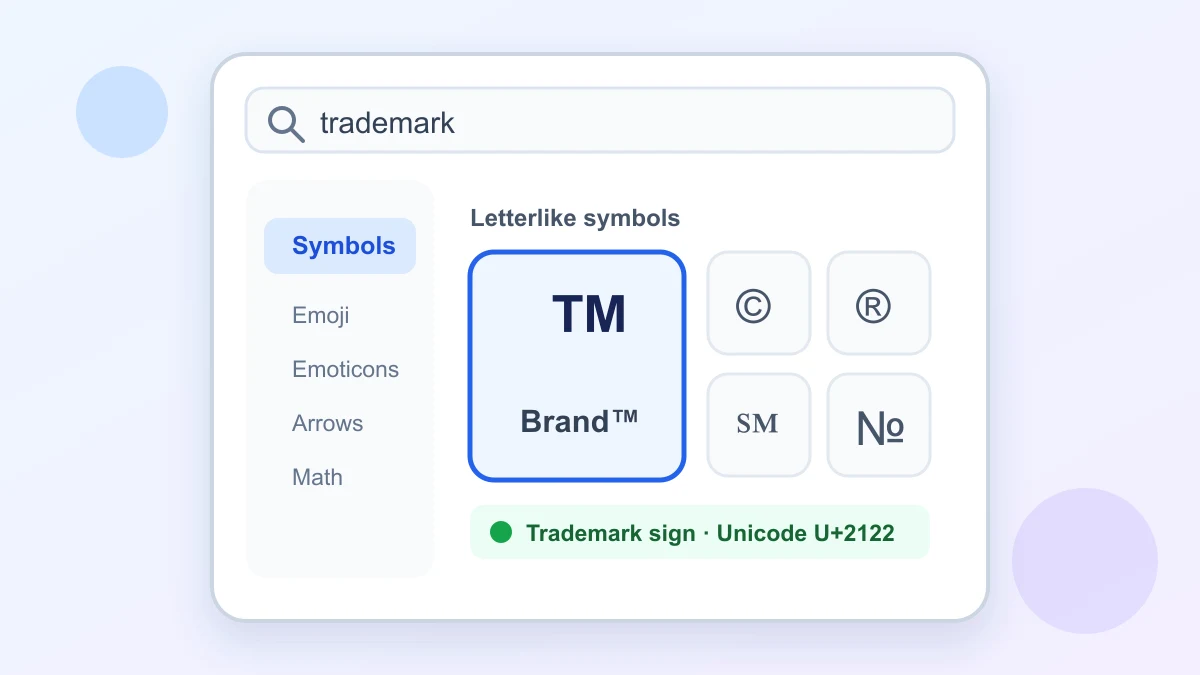
Tap to copy → U+2122Select the large symbol card at the top. A success message confirms that the character reached the clipboard. It remains editable text rather than an image.
Get the trademark symbol on Chromebook as editable Unicode text now. Copy ™ in one click, or press Search or Launcher + Shift + Space in a text field to open the ChromeOS picker and find the Letterlike symbols.
Most reliable Chromebook method
The button copies Unicode U+2122. For the native picker, use Search or Launcher + Shift + Space, choose Symbols, search for “trademark,” and select ™.
Immediate answer
The fastest way to use the trademark symbol on Chromebook is to copy the text character above. This works when a website, Android app, Linux window, remote desktop, or managed setting does not expose the ChromeOS picker.
Select the large symbol card at the top. A success message confirms that the character reached the clipboard. It remains editable text rather than an image.
Put the cursor in an editable field before pressing the shortcut. Search and Launcher are two names used on different Chromebook keycaps for the same shortcut role.
Move to the destination, click where the mark belongs, and press Ctrl + V. In a rich editor, use plain-text paste if inherited formatting changes the surrounding type.
The copied character is U+2122. Its small raised appearance comes from the current font, so its size and spacing can vary while the underlying text stays the same.
Step-by-step workflow
Use the native symbol picker when you want to type the trademark symbol on Chromebook without leaving the current field. If an app or policy blocks the picker, return to the one-click copy method.
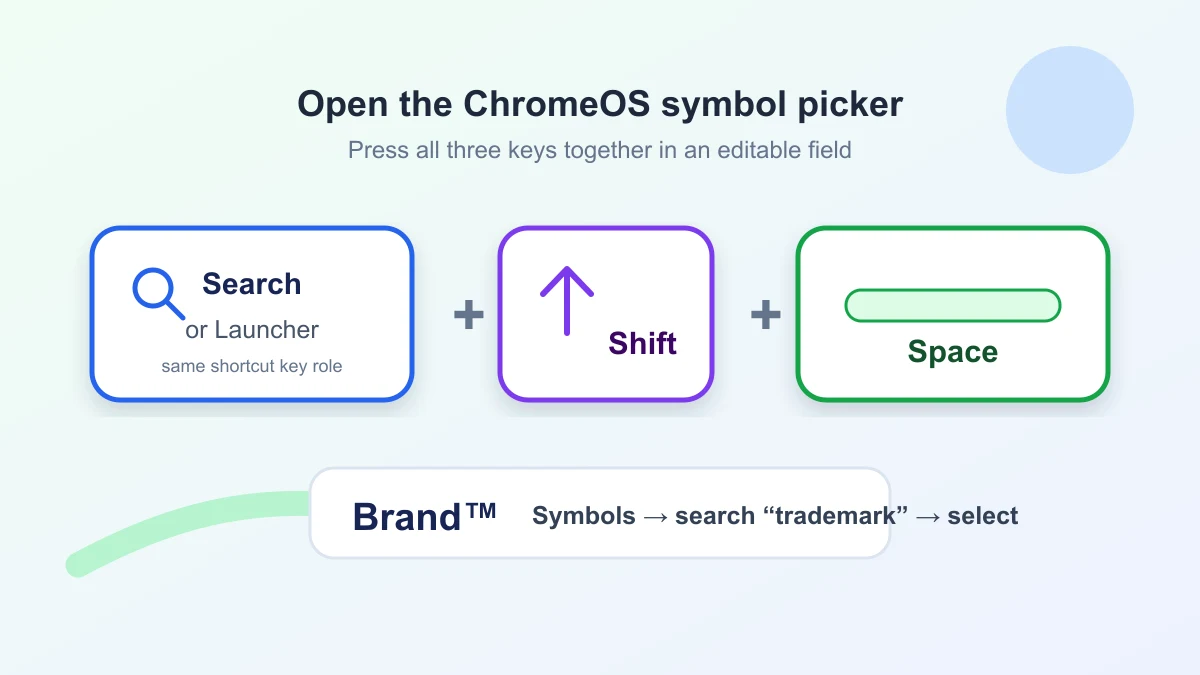
Google documents the shortcut, right-click route, Symbols category, and search field in its official Chromebook symbols guide and lists Search/Launcher variants in the ChromeOS shortcut reference.
App-specific choices
The best route depends on which layer receives the keyboard command. The trademark symbol on Chromebook is ordinary Unicode text, but a web editor, Android container, Linux app, or remote computer may handle shortcuts independently.
Use the system picker or paste ™. Google Docs and Slides also provide Insert → Symbols → Special characters, where you can browse categories, enter a Unicode value, or draw a character. The result stays editable.
Place the cursor before opening the picker. If the website captures the shortcut, copy the trademark symbol on Chromebook from this page and press Ctrl + V in the message, profile, or form field.
Android apps can use their own input rules and some Chromebooks do not support every Android app. Copy and paste is the cleanest boundary; use the separate trademark symbol in Android apps guide for mobile-keyboard steps.
A Linux program or remote computer may capture Search, Launcher, or Shift before ChromeOS sees the combination. Copy ™ in Chrome, then paste through the destination app or remote session controls.
Google confirms that Docs and Slides can insert special characters from their Insert menu. It also notes that Android availability and administrator controls vary, so this page does not promise identical behavior on every managed device.
Most failures are caused by focus, key remapping, application shortcut handling, version differences, or device management—not by the trademark character itself. Start with the copied trademark symbol on Chromebook before changing system settings or installing an extension.
Click an editable field and try again. Confirm whether your key is labeled Search or Launcher, and check Settings → Device → Keyboard and inputs if modifier keys were remapped. Copy and paste if the app still captures the command.
The context entry appears only in supported editable areas and can vary with the current ChromeOS interface. Try the keyboard shortcut in another text field, or paste ™ directly.
Work and school administrators can restrict features and apps. Do not attempt to bypass those controls. Ask the administrator for the approved method, or use copy and paste where policy allows it.
Copy the character before opening the destination, then use Ctrl + V or the app's paste command. This avoids competing keyboard layers and keeps the trademark symbol on Chromebook as normal text.
The text remains Unicode U+2122, but its design comes from the chosen font. Switch to a font with broad Unicode support and inspect the final export. Do not replace the character with a screenshot.
Press Search or Launcher + Shift + Space in an editable field. Open Symbols, search for trademark, and select ™. If the picker is unavailable, copy the character on this page and paste it with Ctrl + V.
Open the ChromeOS picker with Search or Launcher + Shift + Space, or right-click a supported text field and choose Emoji. Select the Symbols category; trademark is a letterlike symbol.
Yes. Use the ChromeOS picker, paste ™, or choose Insert → Symbols → Special characters in Google Docs or Slides. Select the character to insert editable text at the cursor.
The cursor may not be in an editable field, an app may capture the shortcut, a key may be remapped, or a work or school policy may restrict the feature. Copy and paste is the safest fallback.
Usually. Copy the Unicode character, focus the Android app, and press Ctrl + V or use its paste command. Some Android apps handle Chromebook shortcuts differently, so copying avoids that conflict.
Need another platform? Compare trademark symbol on Mac methods, the Windows trademark Alt code, or the difference between ™ and the registered trademark symbol.
Use the same editable trademark symbol on Chromebook in documents, messages, browser forms, and supported apps. For every major platform, compare keyboard methods for the trademark symbol.